
Geofund + Declare: Adding Team Members to Your Geofund Account
Welcome to Geofund, the new home for all of your Declare needs. If you have not yet logged into Geofund for the first time, you will need to complete this process first. You can follow the steps described in Declare & Geofund: Logging In for the First Time to log in and start managing your Geofund account.
In Geofund, an account is operated by a company. If there are multiple brands or subsidiaries under that company, those brands will also manage Declare labels under the same account. Multiple Geofund users can be added to an account. This guide describes how to complete this process.
Please note that the Manufacturer Information will default to the company listed on the account, but these fields can be updated in the Product tab.
Inviting Others to Access Your Account
Once you are logged into Geofund, navigate to Settings in the left-hand menu. Within Settings, select Teams & Roles to open and manage the list of all team members included within your account.
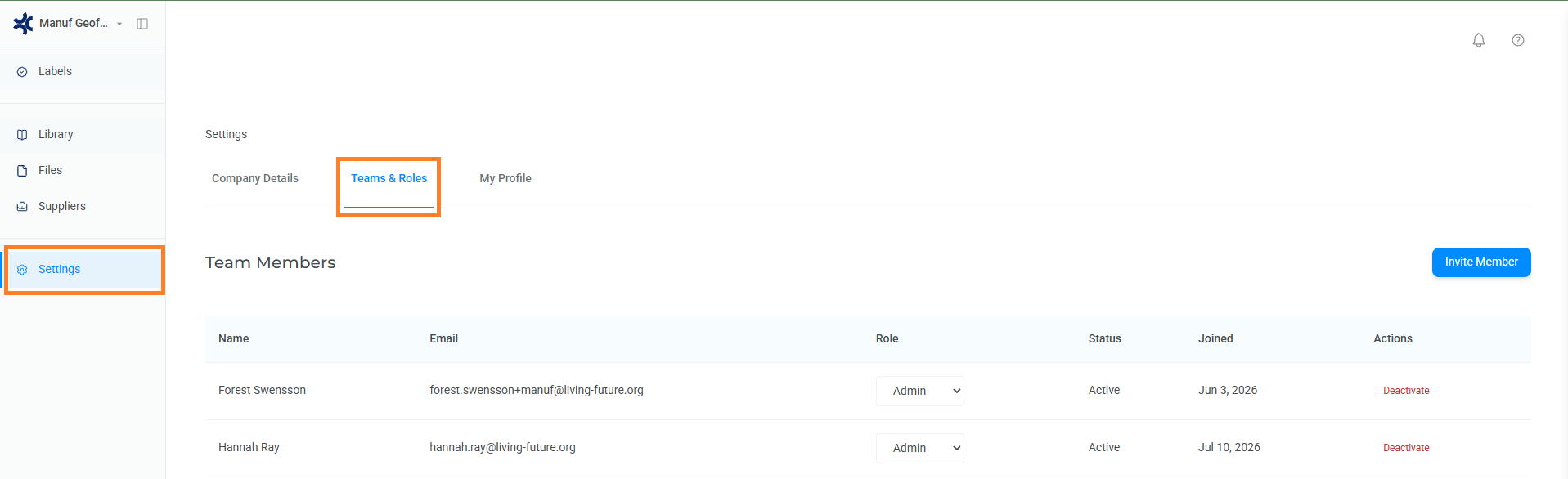
Within the Teams & Roles tab, you will find all team members housed within the account. When you first log in, you will be the only team member in the account, and will have the role of Owner. To add additional team members, select the Invite Member button on the right side of the webpage. This will open a box asking you to input the Email of the team member and what Role you’d like to assign them (see section on Team Member Roles for more information).
Once you’ve input the team member’s email the desired role, select send invite.
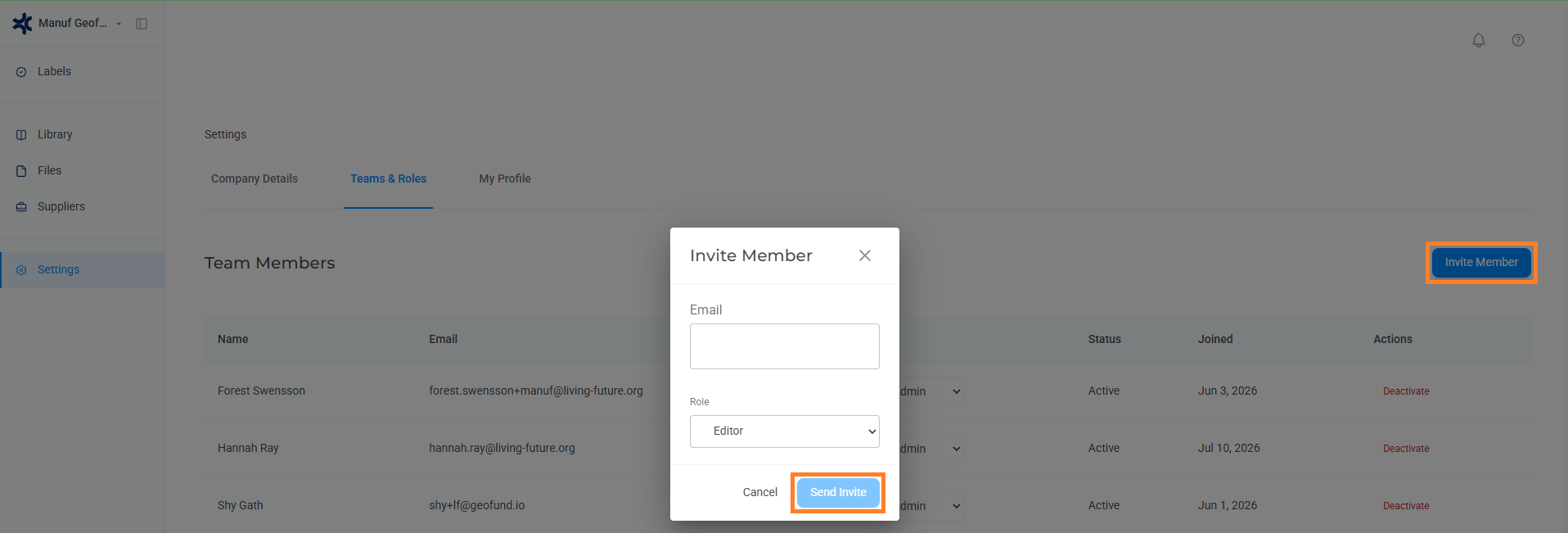
An invite will then be sent to the new team member, and they’ll be able to create their Geofund member account, accessing the company account once logging in.
Invites will expire after one full week. And if needed, you are able to resend the invitation by navigating to Pending Invitations at the bottom of the Teams & Roles tab, and then selecting Resend beside the invited user.
Team Member Roles and Team Management
When inviting team members to your account, you must select one of the available roles to give to that team member. You can give them Editor, Admin, or Preparer roles.
A team member with the Admin role will be able to access and update all settings and labels prepared and/or submitted within your account. They will also be able to invite additional team members and assign roles to those new team members as well. The Owner and Admin have the same permissions throughout the account.
A team member with the Editor role can access Labels, Library, Files, and Suppliers, and they can make edits to anything housed within those tabs. They can also create their own Declare labels and submit them on behalf of the organization. While they can edit the Manufacturer Information within the Product tab of a specific label, they are not able to access Company Details or Teams & Roles within the Settings tab.
The Preparer role should be reserved for third party preparers you’re working with to prepare Declare labels for submission. Preparers have the same permissions and access as the Admin role. A user should be given the Preparer role when they are part of a third party organization developing a Declare label on behalf of your organization.
The Owner or Admin may also update the roles of Team Members by selecting the drop down under the Role column and selecting a new role from the available options. Additionally, you may select Deactivate under Actions to remove a user’s access.
Getting Help
If you have any questions or require additional support please contact declare.support@living-future.org. Declare also hosts regular office hours; sign up here.