
Geofund +Declare: Renewing Declare 2.0 Legacy Labels
Declare 2.1, like Declare 2.0 before it, requires that published labels renew annually, ensuring that any changes made during the previous year are recorded and that the bill of materials is screened against Living Future’s annual Red List updates. Just like in Declare 2.0, labels will become eligible for renewal 60 days prior to its expiration date and will remain eligible for renewal up to 30 days after its expiration date. A Declare legacy label that has expired or has been retired can still be renewed using the same process, however, the renewal will be priced at the full Declare label fee.
This guide will walk you through how to begin the renewal of your Declare 2.0 legacy label.
Finding Legacy Labels Up for Renewal
After logging into Geofund, you will immediately be taken into the Labels tab. All labels published under Declare 2.0 and later published, submitted, drafted, etc. under Declare 2.1 will be housed under this tab. To identify which labels are eligible for renewal, select the Renewal filter bubble. This hides any label that is not yet eligible for renewal. You can do the same for labels that have been Submitted, are Expired, are In Review, etc.
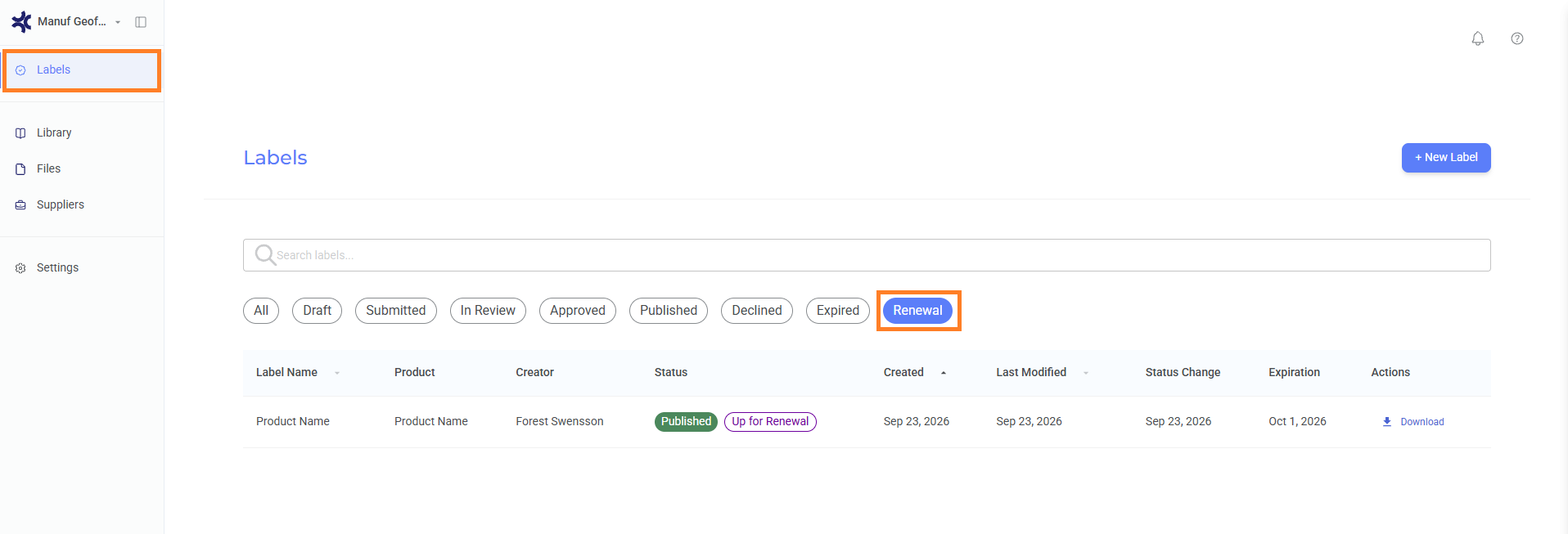
You can now select the label to review the existing Declare 2.0 Legacy label.
Preparing Your Legacy Label for Renewal
Once you select your label that is eligible for renewal, you’ll be brought to a single page that shows the label name, a box indicating that “This label was imported from the previous Declare system and is view-only. Duplicate it to create an editable copy,” and an image of the Declare 2.0 legacy label. You’ll also see that the label is flagged as “Legacy” in the top right corner of the webpage.
To begin the renewal process of the legacy label, select Duplicate in the top right corner.
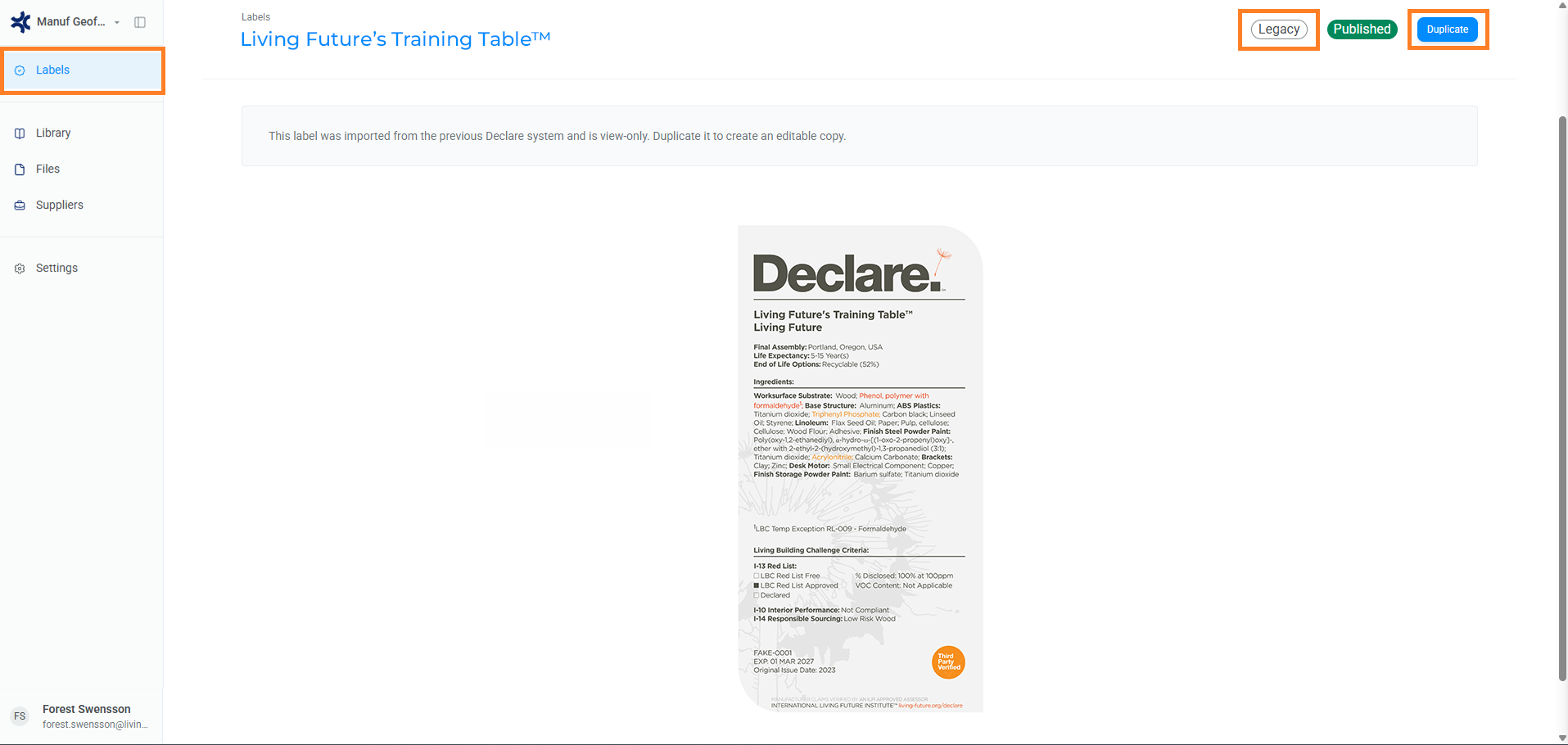
Selecting Duplicate will create a copy of the legacy label as a Declare 2.1 draft. Upon selecting Duplicate, you will immediately be taken to the Product tab of the draft and may begin ensuring all duplicated data is accurate and editing any data that needs adjusted.
If you exit the page and return to your Labels tab, you will be able to identify the Declare 2.1 draft of the legacy label by the inclusion of “Copy” in its name. This can be edited as you work through the draft’s Declare label workflow.
If you select Duplicate more than once while in the legacy label, multiple duplicates will be created within your account. Please alert declare.support@living-future.org if this occurs so that the Living Future team may remove those additional duplicates.
As part of the duplication process, the Product Name, Manufacturer Name, Product Image, Product Website, Bill of Materials, Declare ID, and Original Issue Date should all be included in the Declare 2.1 label. You will need to update all information within the Declare tab as well as add all Final Assembly Locations in the Product tab.
Living Future advises that you review the bill of materials closely to ensure that all duplicated data remains accurate.
For details on the Declare workflow in Geofund, please see Initiating the Declare Label Workflow within the Introduction to the Geofund Platform help article. This article provides detailed information on each tab within the draft label, how to navigate changes within the new platform itself, and steps to submitting your label for publication.
Getting Help
If you have any questions or require additional support please contact declare.support@living-future.org. Declare also hosts regular office hours; sign up here.